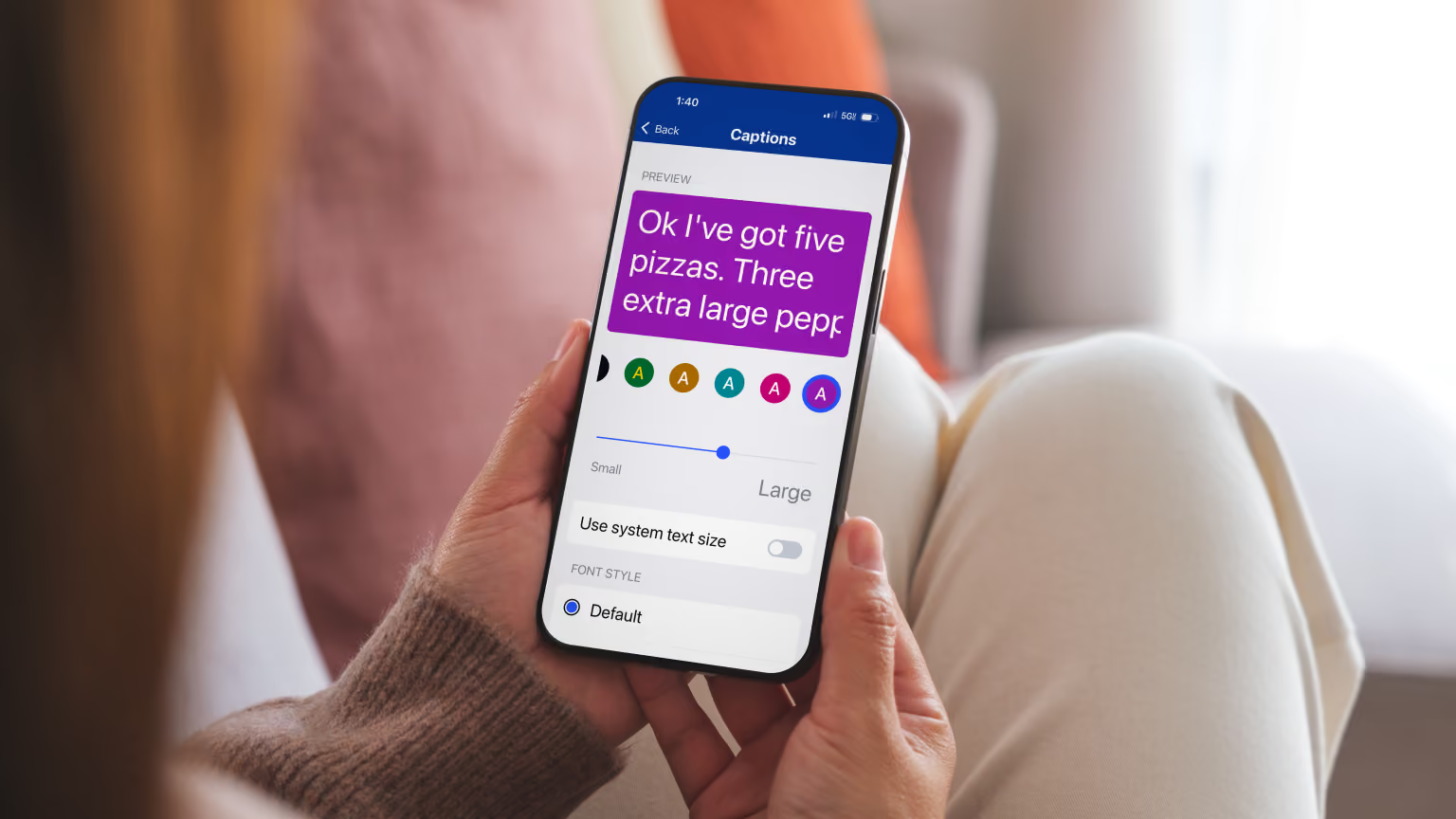

Whether you've been using InnoCaption for years or you're just getting started, there's a lot more to the app than you might realize. Here are ten very helpful things you might not realize you could do with InnoCaption (and a few extras for good measure).
Captions only help if you can read them comfortably. In Settings > Captions, you can:
There's also a separate App Text Size setting (Compact, Default, or Larger) that adjusts the text throughout the rest of the app. For our low vision and DeafBlind users, these options can make the difference between squinting at a call and actually following it.
Bonus tip: You can resize captions mid-call by pinching two fingers together or apart on the screen, the same way you'd zoom on a photo.
Learn how to personalize your caption screen
Ever been put on hold by a customer service agent, looked away from your phone, and missed the moment the agent came back because you weren’t looking at the captions? If you're not watching the screen, there's no way to know the call has resumed — and too often that means the person on the other end hangs up and you're back to square one.
A feature called Caption Alert solves that problem. Turn it on during a call, and as soon as captioning starts again after a pause, your phone will vibrate and the screen will flash white.
To use Caption Alert, tap the three-dot icon during a call and select Enable Caption alert.
Learn how to use Caption Alert
If speaking on calls is difficult or you prefer not to use your voice, text to speech (TTS) lets you type your side of the conversation and have a natural-sounding voice speak it aloud.
With our text-to-speech feature, you can:
There's even a "Mute mic as default" option if you want to use TTS as your primary way of communicating. It keeps background noise from reaching the other party, so they only hear the TTS voice.
Learn how to use Text-to-Speech
Typing full sentences during a live call is hard: every second you spend composing a reply is a second the other person is waiting. But with a feature called AI Refine, you can type a short or partial response and get a complete, natural sentence with a tap. (For example, you could type in “reschedule,” tap the AI Refine button, and get “I need to reschedule my appointment.”)
The sentences AI Refine generates are based on the context of the conversation you’re having. You can edit the draft before sending, so you always have the final say on what gets spoken.
If you want to try AI Refine without calling anyone, use the "Make a test call" feature in Settings to practice on a simulated call.
Every captioning service occasionally stumbles on uncommon words: your doctor's last name, your hometown, the technical terms you use at work. Custom Word List lets you teach InnoCaption the words and phrases that matter to you so they’ll be captioned correctly.
You'll find it under Settings > Captions > Custom word list.
Learn how to add words to your Custom Word List
Just finished a long call with your insurance company and need to review a few details, but don’t want to scroll through the entire transcript to find what you need? Open the call transcript in Recents and tap Summarize to get a summary with a list of key points broken out. You can regenerate the summary for another version or share it along with the full transcript as a text file.
Learn how to summarize transcripts
Not every call needs the same settings, so InnoCaption lets you customize them per contact. Both of the following options live inside the individual contact in your Contacts tab.
Caption language
If you speak Spanish with your mom and English with everyone else, you can set a captioning language for her contact card. The app will switch automatically whenever you call her, and your default language stays in place for everyone else.
Learn how to set a caption language for a contact
Outbound caller ID
You can also set a specific outbound caller ID for certain contacts. This is useful if you want work contacts to see your InnoCaption number while keeping your personal number private, or the reverse, so family and friends always recognize the number you're calling from.
Learn how to set an outbound caller ID for a contact
Trying to remember when you last talked to your pharmacy, or what you discussed? Open any contact and you'll find a call log with your conversation history. It's a small feature, but it saves you from scrolling through your entire Recents list to piece together the history of one relationship. It makes it very easy to find a specific call transcript if there’s information you need.
Need to check your calendar or look up a confirmation number in the middle of a call, but still want to see the captions? With Picture-in-Picture, you can leave the InnoCaption app during a call and your captions will follow you as a floating window on top of whatever app you're using.
There's nothing to enable: just navigate away during a call and the Picture-in-Picture caption window appears automatically.
Learn how Picture-in-Picture works
Incoming calls are easy to miss when you step away from your phone, since the alert is on a screen you aren’t looking at. But as long as your Apple Watch is connected to your phone, InnoCaption call alerts will reach you wherever you are. Whether you’re working in the yard or your phone is charging in another room, a gentle tap on your wrist will let you know someone's calling.
If InnoCaption is your primary calling app, you can make it look like one. In Settings > Advanced features > Change app icon, you can swap the standard icon for a simple blue phone icon that's easy to spot on your Home Screen. It's a small change, but a surprisingly helpful one.
One note for Android users: InnoCaption will briefly restart after you change the app icon. (Don’t worry, that's expected.) If the app doesn’t relaunch on its own, just reopen it.
Learn how to change your app icon
We saved this one for last because of the story that helped inspire it. A user reached out to us because the very last voicemail from her sister, who had since passed away, was saved in her InnoCaption app. She had accidentally deleted voicemails before, and she was afraid of losing this one the same way. It's a fear that anyone with a precious saved message understands.
We built voicemail lock for situations like this one. Just open any voicemail and tap the Lock icon, and it can't be deleted unless you deliberately unlock it first.
Some messages are irreplaceable — and InnoCaption lets you treat them that way.
Many of the features on this list were inspired by experiences our users shared with us: a missed call, a hold that ended badly, a voicemail too important to lose. Stories like these help show us what we really need to build. Listening to the community has always been part of how InnoCaption grows, and we're grateful to every user who takes the time to tell us how the app fits into their life (and where it doesn’t).
If there’s any way InnoCaption could better serve your needs, please let us know. We’re always here to listen.


Minah Han is a marketing professional dedicated to advancing accessible communication solutions for the deaf and hard of hearing community. At InnoCaption, she leverages her expertise in digital marketing and storytelling to amplify the voices of individuals who rely on innovative technologies for everyday conversations. Minah is passionate about bridging the gap between technology and accessibility, helping to drive awareness and education around captioned calling solutions.
InnoCaption provides real-time captioning technology making phone calls easy and accessible for the deaf and hard of hearing community. Offered at no cost to individuals with hearing loss because we are certified by the FCC. InnoCaption is the only mobile app that offers real-time captioning of phone calls through live stenographers and automated speech recognition software. The choice is yours.


.avif)